- √ No AdWare
- √ No watermarks
- √ No Trojans/Viruses
- √ JUST FREE
How to Make a Birthday or Anniversary Slideshow with Music
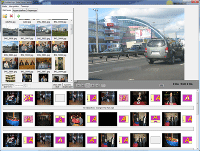
A birthday or milestone anniversary is a perfect reason to gather the best photos of the guest of honor, add music and show the video at the party, on TV or on social media. With free Bolide Slideshow Creator it takes less than an hour, even if you have never edited video before.
The program is truly free: no watermarks, no adware in the installer and no paid features. Save the finished video as MP4 — easy to watch on a phone, upload to YouTube or Facebook.
Story and photos
Think about the story of your video. For a birthday: childhood → school → friends → today; or a fun selection of shots from the past year. For a milestone anniversary (30th, 40th, 50th, 60th birthday): a journey through the years, family milestones, work and hobbies, children and grandchildren — guests love a life story from start to present.
Pick 30–80 good photos — fewer but stronger beats a long dull sequence. Add them in order in the program. Short captions work well: "Age 5", "Wedding, 1985", "50th birthday with friends".
Anniversary slideshow: what to keep in mind
Anniversary videos are often shown at a banquet before the cake or on a big screen in the hall. They are usually longer than a quick greeting: 5–12 minutes, calm or festive music, alternating portraits and group shots. A structure by decades works well: "1960s", "1990s", "Today".
If you are preparing a surprise, ask relatives for old scans from family albums. For a wedding anniversary (wooden, silver, golden) collect photos from the wedding, vacations and holidays together. For a company anniversary, open with the logo, team photos and key company milestones.
Music for birthday and anniversary slideshows
Choose one or two tracks to match the mood: more upbeat for a birthday, often calmer or ceremonial for a milestone or wedding anniversary. If you plan to post online, use music without copyright restrictions — otherwise YouTube or Facebook may mute the audio. Tips and links to free tracks are in our guide on royalty-free music for slideshows.
Effects and saving
Add transitions between slides (or let the program assign them automatically). Pan&zoom looks great on portraits. Save as MP4; Full HD is fine for TV, and you can pick a smaller size for phones.
How to show it to guests
- play on a TV from a USB stick or laptop;
- send the file or link in a messenger;
- upload to YouTube, Facebook or Telegram — one video instead of dozens of photos in the feed.
Need a general walkthrough? Read how to make a slideshow video. Answers to common questions — in the FAQ.
Download Bolide Slideshow Creator for free
Turn photos into a surprise gift — the birthday person or honoree will love it! FREE DOWNLOAD